
Browse your data
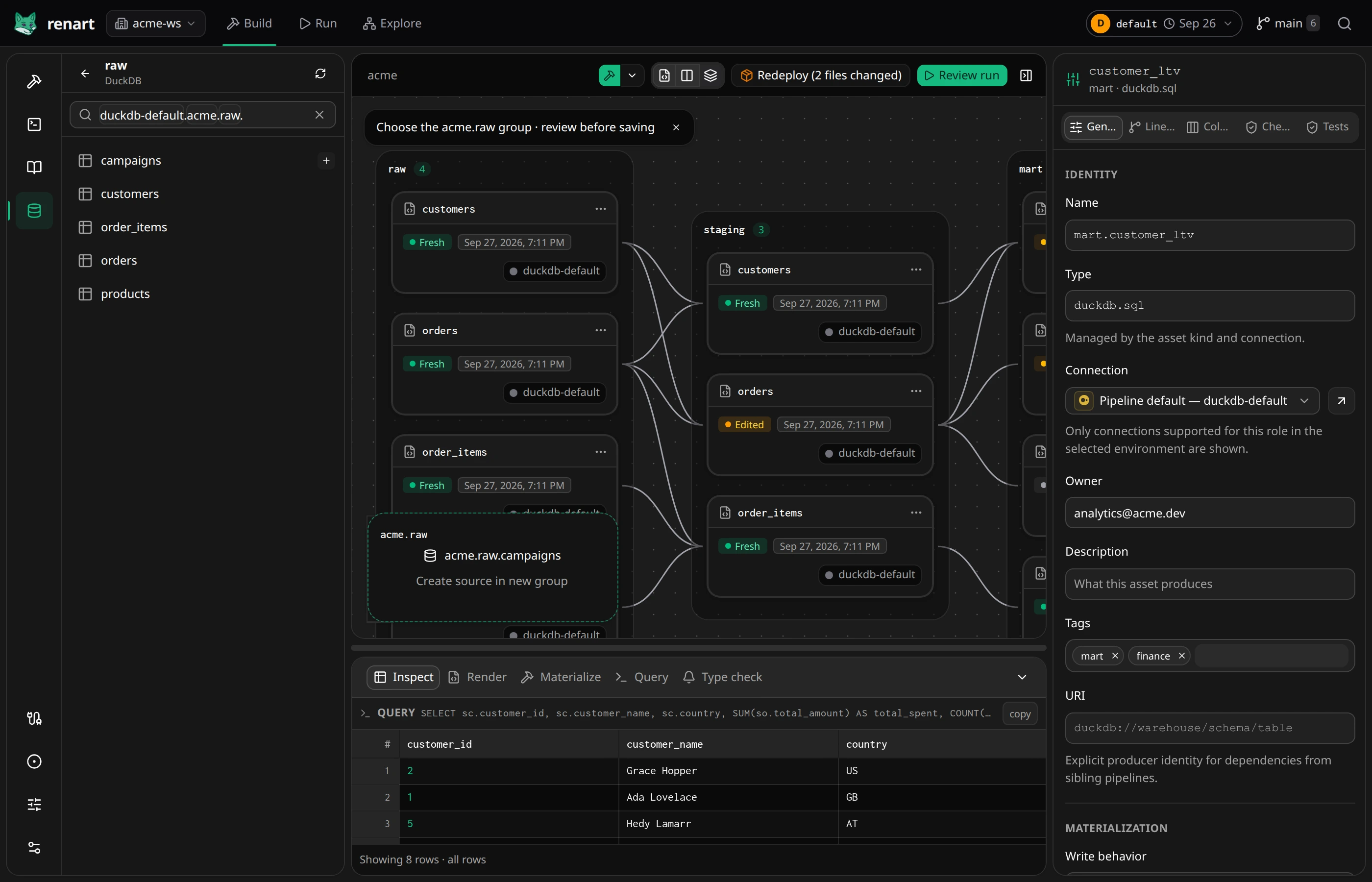
The Data Browser shows what your connections can reach: databases, schemas, tables and files, with their columns and types. Use it to find the data a pipeline needs, preview a few rows, and add an existing table to the canvas.
Before you start
Section titled “Before you start”Add a connection for the database, warehouse or storage you want to browse. Files inside the project are available without one.
Browse a connection
Section titled “Browse a connection”- In Build, open Data Browser from the left rail.
- Choose a connection under Connected sources, or Project files for files inside this project.
- Open the namespaces down to a table or file. The search field shows where
you are, for example
duckdb-default.acme.raw., and you can type a path there directly. - Select a table or file. Columns lists its column names and types without reading any rows. Choose Preview rows when you want to see data.
For CSV and other files, Renart infers the columns from the file itself. The interface tour describes the search syntax, storage prefixes and path patterns in detail.
Add a table to a pipeline
Section titled “Add a table to a pipeline”- Open the pipeline’s Canvas, then open Data Browser beside it.
- Find the table and choose + next to its name, or drag it onto the canvas.
- Choose where the new asset goes: an existing group on the canvas, or Create source in new group.
- Check the Create source asset review. It shows the asset name, the connection and the file Renart will add to the project. Import observed columns is on by default, so downstream SQL gets completion and type checking for this table.
- Choose Create source asset.
A source asset refers to the existing table. Creating it copies no data and runs nothing. To copy data from another system into your warehouse instead, use a Load asset.
Result
Section titled “Result”The table appears on the canvas as a source asset. With its columns imported, SQL that reads the table gets column completion and type checking, the same as for any other asset in the pipeline.
Related
Section titled “Related”- Load assets: copy tables and files between systems, including from storage prefixes you find in the Data Browser.
- Notebooks: add Data Browser tables and files to a notebook.
- Catch errors with type checking: what imported columns make possible.