
Tour of the interface
The top bar has three modes: Build, Run, and Explore. Choose a mode, then use its tool rail on the left. The project switcher, environment picker, and Git branch stay in the top bar.
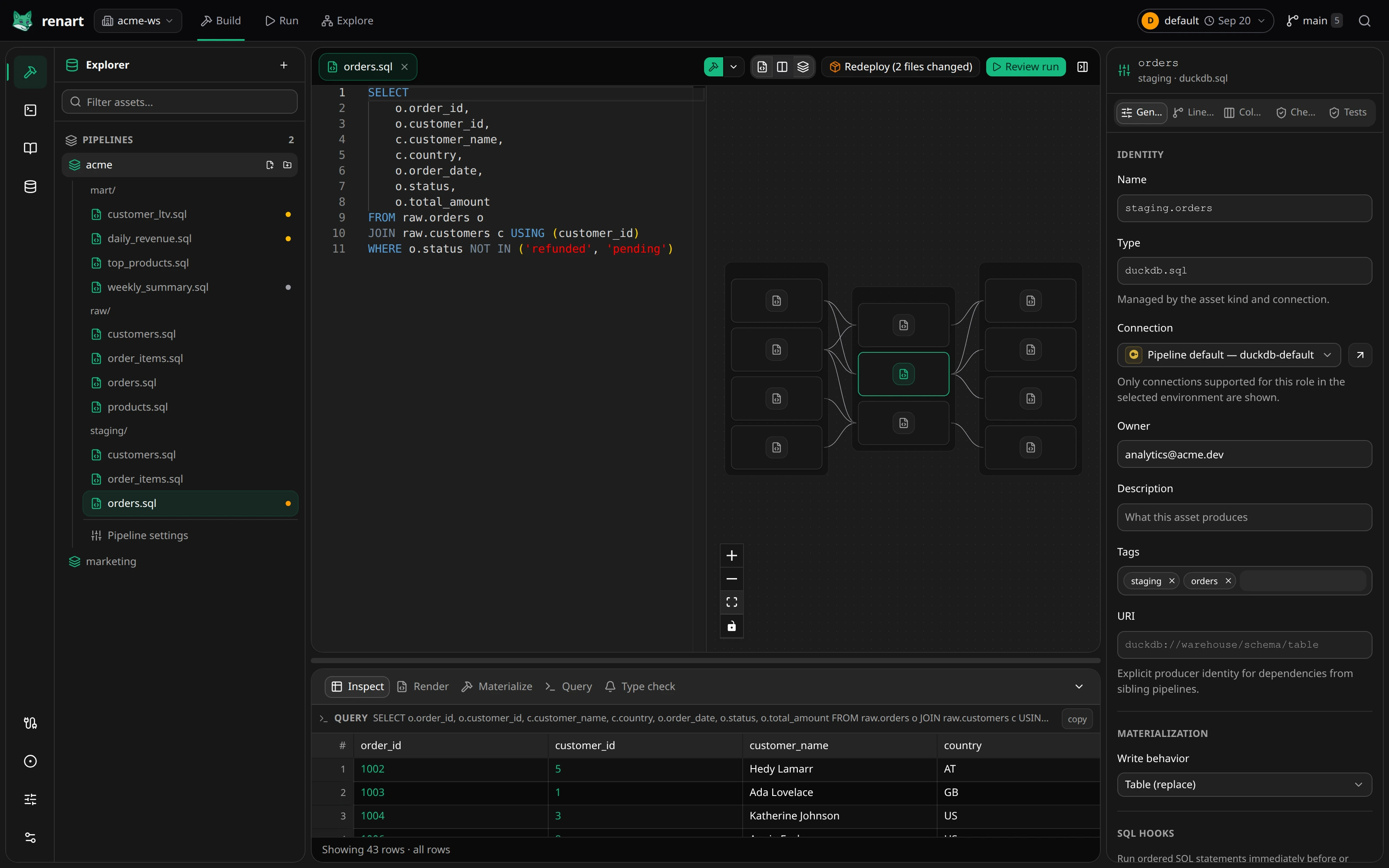
Use Build to edit assets and notebooks or browse source data:
- Project resources opens the Explorer with pipelines and asset files.
- Notebooks opens analysis documents. An open notebook has Outline, Data, Add, and AI tools in its sidebar.
- Data Browser opens configured databases and object storage; see Browse your data.
- Ad-hoc query opens a query without adding a pipeline asset.
- Connections, Environments, and Project settings are utility tools near the bottom of the rail.
For an asset, Code, Split, and Canvas change the central layout. The results panel below it contains Inspect, Render, Materialize, Query, and Type check. The properties panel on the right groups metadata into General, Lineage, Columns, Checks, and, for SQL assets, Tests. Use Show properties or Hide properties to make room without changing the asset.
Find data across levels
Section titled “Find data across levels”In the Data Browser search field, start with a connection name, then follow its
namespaces: duckdb-default.a filters that connection’s first level for a.
Continue with dots to reach a schema or table. For S3 and SFTP, use slashes:
my-s3-connection./some/path/ lists that prefix below the connection’s configured
root. Renart loads only the requested levels, not the entire tree.
The faint suggestion shows only the rest of the name. Press Tab, or tap the
Tab button on mobile, to accept it and add the next separator. Completed path
segments have a subtle background so you can see which level you are searching.
Tables and files complete without a separator. Names
containing literal dots are quoted in warehouse paths. If an S3 listing exceeds
500 entries, keep typing the name prefix: my-s3-connection./my_table/day=2026-09
asks S3 for that narrower, case-sensitive prefix. Once the results fit within the
limit, further filtering uses the loaded list without another request. You can
also enter a storage prefix ending in / to open it directly. Clearing the
search returns to the folder you were browsing.
Match storage paths
Section titled “Match storage paths”For S3-compatible storage and SFTP, * matches any number of characters within
one path segment and ? matches one character. For example,
my-s3-connection./events/day=2026-09-??/part*.parquet finds matching files in
the matching day folders. Matching is case-sensitive. A trailing / browses
the matching folders’ children. Recursive ** and character classes are not supported.
Search only reads metadata. Selecting a result opens its exact path; it does not turn a Load source into a wildcard. If you see Partial matches, narrow the literal prefix: the search reached a listing or traversal limit.
View SQL in the Data Browser
Section titled “View SQL in the Data Browser”For views whose warehouse exposes the definition, the SQL tab shows the stored query with syntax highlighting. Its URL also opens that tab directly. The definition remains available if reading the view’s data fails.
In DuckDB, relative file reads use the active project’s root, not the folder containing the database or SQL asset. A view created in another or nested project may therefore refer to a missing file. Check its SQL tab and the project root shown in the error; Renart does not rewrite the view or guess a different folder.
The Run tool rail contains Run overview, Deployments, Schedules, and Runs. Use it to review saved pipeline versions, manage recurring work, and inspect execution logs. See Deployments and scheduling and Runs and history.
Explore
Section titled “Explore”- Workspace Catalog shows assets and lineage across pipelines.
- Dashboards opens the visual dashboard builder.
- Reports opens documents that combine text and visualizations.
See Dashboards and reports for a guided workflow.
Follow a diagnostic
Section titled “Follow a diagnostic”When a warning offers Open columns or another navigation link, follow it to the existing editor control. These links carry the target in the URL, so they also work in a new tab. Unrelated choices, such as the selected results tab or left sidebar tool, stay as they are unless the destination needs to change them.
On smaller screens, use the mobile tool tabs to reach the same destinations.
The environment picker
Section titled “The environment picker”The environment selected in the top bar (for example default or
production) is the one previews, materializations, and ad-hoc queries run
against. Environments are defined in the project config — see
Managing connections.