
The asset editor
Open an asset from the canvas or Explorer. The editor uses known upstream schemas for SQL completion and diagnostics; the properties panel holds the asset’s connection, materialization, columns, and checks.
Write SQL that knows your pipeline
Section titled “Write SQL that knows your pipeline”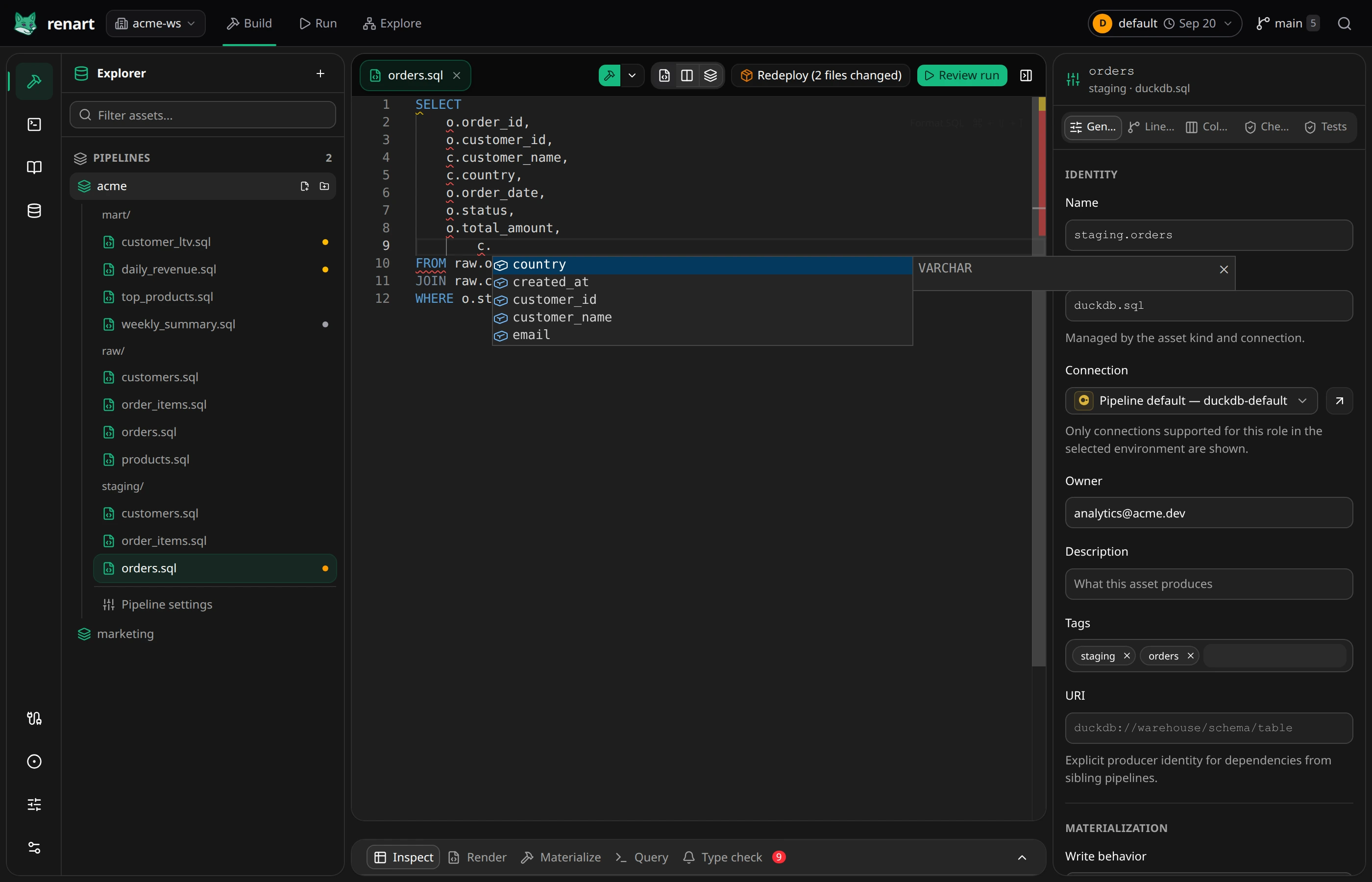
- IntelliSense completes authored assets and positively observed tables from the selected warehouse, with known columns and types.
- Validation flags unresolved tables and columns inline as you type. A confirmed remote table is a warning until an authored source asset represents it; the warning offers the same reviewed import as Type check.
- Format SQL reformats the query in place.
- Code edits autosave after a short delay. Cmd/Ctrl+S saves explicitly. Review runs and deployments use saved source, not an unsaved editor buffer; resolve any save error before continuing.
Inspect, render, and execute
Section titled “Inspect, render, and execute”The results panel under the editor follows the selected asset:
- Inspect — preview the data without materializing the destination table. Failed previews show the engine’s error.
- Render — inspect compiled SQL and planned operations without executing them. See Variables and Jinja in SQL.
- Materialize — execute this asset for real and stream the output.
- Query — run an ad-hoc query against the same environment.
- Type check — column/type problems across the pipeline, the same checks as
renart type-checkin CI. See Catch errors with type checking.
Open Run → Runs for execution history. SQL previews can consume warehouse resources; Python and HTTP previews execute code or requests. Only preview workspaces and endpoints you trust.
The workbench
Section titled “The workbench”Use Show properties if the panel on the right is closed. Its tabs are:
- General — identity, connection, and materialization (for example view or table with replace).
- Lineage — upstreams inferred from the SQL, plus a searchable free-text picker for manual dependencies. Picking an asset from another pipeline uses its URL and links back to the producer; a missing URL is shown before you add the dependency.
- Columns — scan-friendly editable rows for names, types, descriptions, ownership, and checks. Sync schema compares the asset definition with optional live-response or current-table evidence. Safe additions apply directly; type or deletion conflicts open a source-by-source resolver, and you can always add a declared column manually.
- Checks — column checks and custom SQL checks.
A diagnostic’s Open columns link opens the relevant declaration in this same panel. It does not create a separate copy of the column editor.
Like everything in Renart, workbench edits land as plain file changes in your repository, so a form edit and a code edit look the same in review — see how it works.