
Notebook agents
Chat inside a notebook
Section titled “Chat inside a notebook”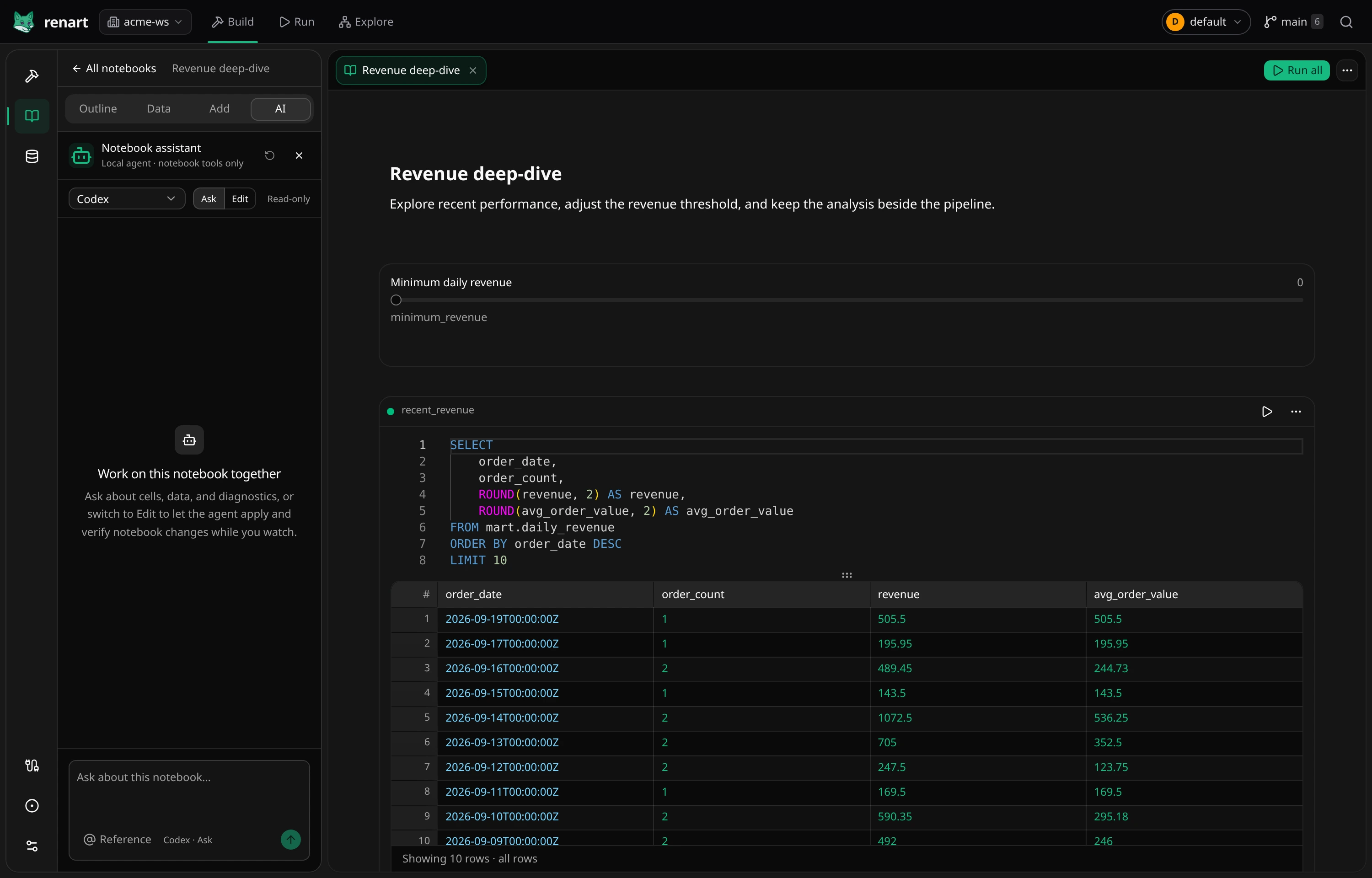
Install and sign in to Codex, Claude Code, or OpenCode on the machine where
Renart runs. Open Build → Notebooks, select a notebook, and choose AI in
its sidebar. Renart discovers
available clients on PATH; it does not ask for or store a provider API key.
Choose a client and one of two capability modes:
- Ask can inspect the open notebook and search the current workspace catalog: blocks, dependency graph, diagnostics, source provenance, asset descriptions, lineage, materialization policy, and bounded result schemas/samples. It cannot edit files or run cells.
- Edit can prepare, validate, and apply semantic notebook changes and can add notebook data sources, and run the cells needed to verify them. Selecting Edit authorizes those actions for the turn; the resulting files remain ordinary, reviewable Git changes.
Use the @ control in the composer to attach notebook cells or workspace assets to a message. References are sent as stable semantic identities rather than pasted file paths, so the agent can inspect the exact object you mean.
If the agent needs a decision, it can pause and show a short questionnaire in the conversation. Answer it there and the same turn continues; you do not need to restate the task. Stopping or starting a new chat also cancels a pending question.
An Edit turn can also ask for read-only access to a configured data connection. You can approve an existing connection or create one in the normal Renart connection form. Credentials remain inside Renart: the agent receives only the connection name and can perform bounded catalog discovery and sample queries for that turn. Access ends with the turn. DuckDB notebook data does not require this extra approval.
When an agent adds a source from DuckDB, Renart can run it through the same local read-only path as a manually added source. A newly added source on another warehouse remains pending until you review and run its first import in the UI; the agent cannot silently transfer an unknown amount of remote data into the notebook.
The panel starts in Ask whenever it opens, so an earlier Edit choice does not silently carry into the next task.
The chat shows progress such as reading the notebook outline, validating changes, or running cells. Changes appear in the notebook through the same server and workspace event stream as normal UI edits, so you can watch the document update alongside the conversation. Stop cancels the provider and its MCP process tree. New chat clears the current transcript and local provider session.
Chats are bounded in-memory runtime state. They survive page navigation and a temporary event-stream reconnect, but a Renart restart clears them; no prompt or answer is written into the repository. Each provider and Ask/Edit mode has a separate resumable session.
Renart starts native-chat agents in a private non-repository directory and connects them to a notebook-scoped MCP server. Ask mode does not register write or run tools. If a provider tries to use generic shell, filesystem, or web tools instead of Renart’s notebook tools, Renart stops that turn and shows the blocked activity. This is a focused local workflow, not a sandbox for an untrusted binary.
Connect an external coding agent
Section titled “Connect an external coding agent”renart mcp --workspace . starts a local stdio MCP server for one Git-backed
workspace. It connects to the Renart process that already owns the workspace,
or starts the same notebook services in-process when the IDE is closed. It does
not open another network listener.
The server exposes semantic notebook operations rather than arbitrary paths or
REST endpoints. An agent can inspect notebook outlines, blocks, dependencies,
diagnostics, source provenance, bounded result samples, and searched catalog
entries with lineage and materialization context. It can prepare and validate a
revision-bound change, but writing files requires the separate
apply_notebook_change_set tool. Runs are explicit and asynchronous; executing
Python additionally requires allow_python: true.
Renart’s MCP server does not provide shell, filesystem, Git, connection configuration, credential, arbitrary SQL, or generic HTTP tools. A coding agent may have those capabilities independently, depending on how you configure that client. This integration is a cooperative local workflow, not a sandbox for the whole agent process.
Before connecting
Section titled “Before connecting”Install the renart binary somewhere on the coding agent’s PATH, and run the
agent from the workspace you want it to use. Renart never writes an agent
configuration file for you.
Run this from the workspace:
codex mcp add renart -- renart mcp --workspace .codex mcp listCodex also supports project-local .codex/config.toml. If you use that form,
keep write approval enabled:
[mcp_servers.renart]command = "renart"args = ["mcp", "--workspace", "."]cwd = "."default_tools_approval_mode = "writes"tool_timeout_sec = 3600See the official Codex MCP documentation for configuration scope and current client options.
Claude Code
Section titled “Claude Code”Add the server to the current project only:
claude mcp add --scope local --transport stdio renart -- \ renart mcp --workspace .claude mcp listThe -- is significant: everything after it is the stdio server command. See
the Claude Code MCP documentation for
scope, trust, and permission settings.
OpenCode
Section titled “OpenCode”Add a local server to opencode.jsonc:
{ "$schema": "https://opencode.ai/config.json", "mcp": { "renart": { "type": "local", "command": ["renart", "mcp", "--workspace", "."], "cwd": ".", "enabled": true } }, "permission": { "renart_*": "allow", "renart_apply_notebook_change_set": "ask", "renart_run_notebook_cells": "ask" }}This allows inspection and change preparation while requiring confirmation
before authored files change or notebook code runs. Use opencode mcp list to
check the connection. See the
OpenCode MCP documentation for current
configuration and per-agent tool controls.
Suggested agent instruction
Section titled “Suggested agent instruction”Add this instruction to the local, untracked agent configuration you use for the workspace:
When working on Renart notebooks, inspect and modify them only through theRenart MCP tools. Start with list_notebooks and get_notebook_outline. Read onlythe blocks and bounded result samples needed for the task. Prepare a semanticchange set, validate it, show me the proposed operations and diagnostics, andwait for approval before apply_notebook_change_set. Never use shell or directfilesystem edits for notebook files. Run cells only when requested; setallow_python only after the Python code has been reviewed.Removing the integration
Section titled “Removing the integration”Use codex mcp remove renart or claude mcp remove renart, or remove the
renart entry from opencode.jsonc. No notebook data or Renart runtime state
is stored in the agent configuration.