
Dashboards and reports
Dashboards and reports turn pipeline results into version-controlled views for local analysis and review. You compose the result directly on a canvas, while Renart checks the fields and types used by every visualization.
Both builders provide Data and Add tools, a settings inspector, and a Definition editor. Reports also have an Outline. An asset dataset gets its schema from the pipeline. A read-only SQL dataset uses its selected connection’s dialect, catalog completion, and inferred output schema, so a renamed field or incompatible chart axis is caught before the definition is saved.
Build a dashboard
Section titled “Build a dashboard”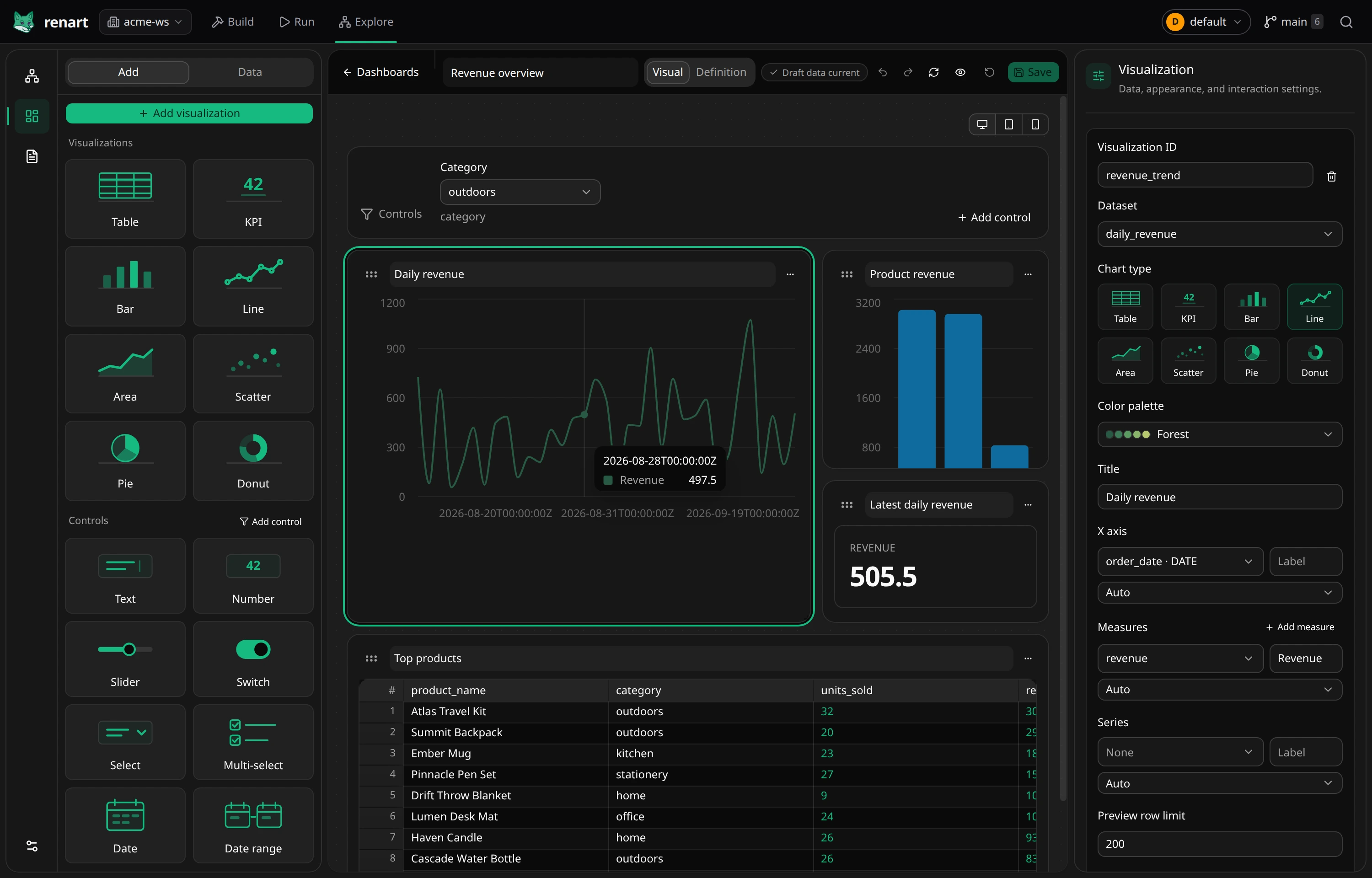
- Open Explore → Dashboards and click New dashboard.
- Open Data, add a dataset, and choose a pipeline asset. A read-only query on a configured connection is also available for advanced cases.
- Click Add. Choose one of the charts, KPIs, or tables suggested from the dataset’s known columns.
- Drag a tile by its handle and resize it from the lower corner. Select the tile to change its data, appearance, filter bindings, or accessible layout controls in the inspector.
- Add controls from the filter strip. Text, select, multi-select, slider, range, and switch controls can use fixed values or options from a dataset. Changing a control refreshes only the visualizations bound to it.
- Use the desktop, tablet, and mobile buttons to inspect the derived layout, then click Save.
The desktop grid is the saved layout. Tablet and mobile are predictable previews of that layout, so there is no second hidden arrangement to maintain.
Compose a report
Section titled “Compose a report”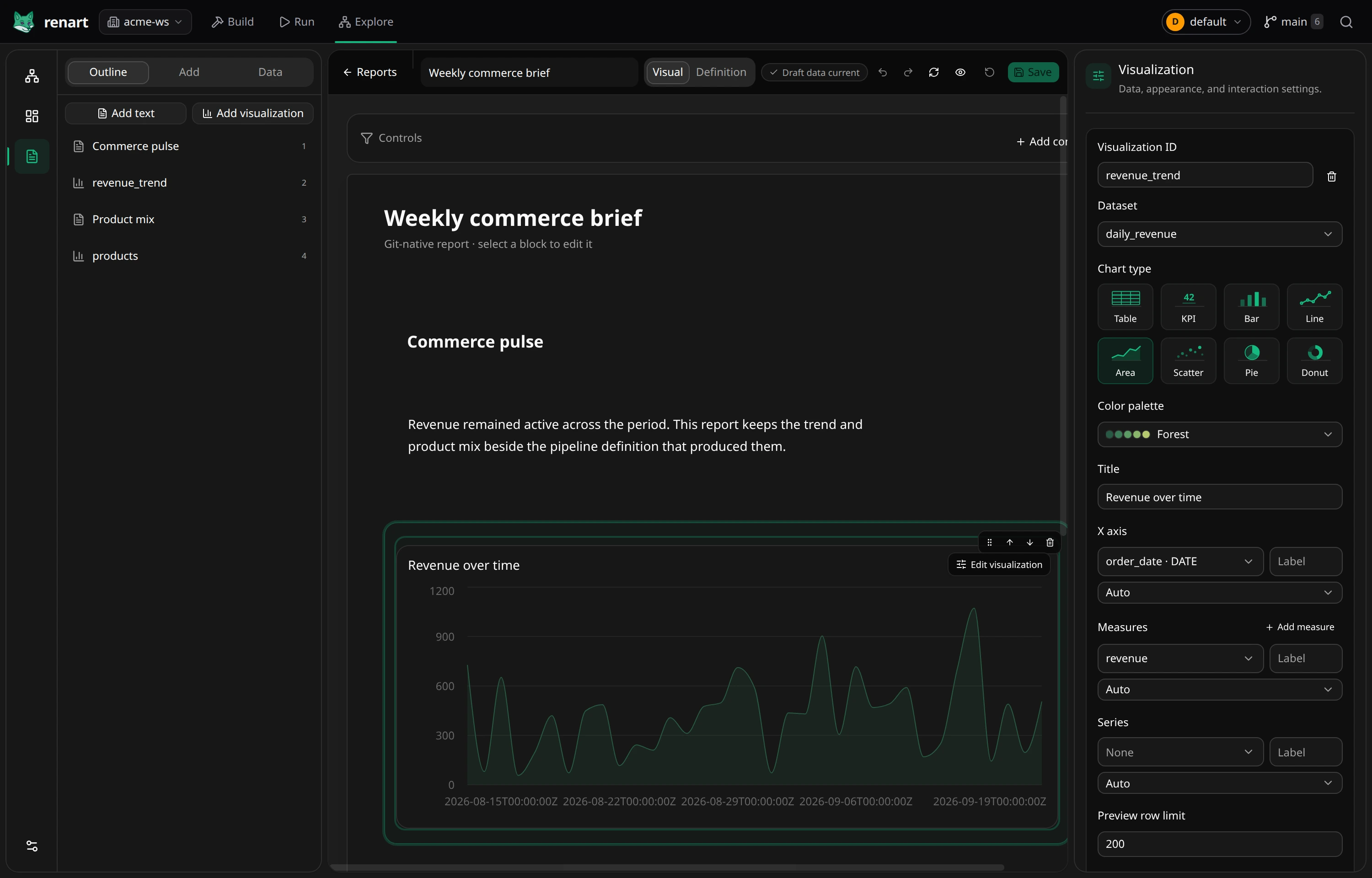
- Open Explore → Reports and click New report.
- Add a text block, then edit its heading and Markdown directly on the report page.
- Add a dataset and insert checked visualizations between narrative blocks.
- Drag blocks in the document or use Move up and Move down. Insert a page break where the printed report should continue on a new page.
- Click Save, then Preview to see the clean audience view without editing controls.
Work with drafts safely
Section titled “Work with drafts safely”Changes stay in a browser draft until you click Save or press Cmd/Ctrl+S. Undo and redo work across text, layout, and component changes. If you try to leave with unsaved work, Renart asks before discarding it.
Preview dataset and filter changes before saving them. If the file changes outside the builder, reload and reconcile it with your draft; Renart does not silently merge the two.