
Catch errors with type checking
Renart checks your SQL against the tables, columns and types your pipeline knows about. Problems show up in the editor as you type, and the Type check tab checks the whole pipeline, including the dashboards and reports built on it, before anything runs against your database.
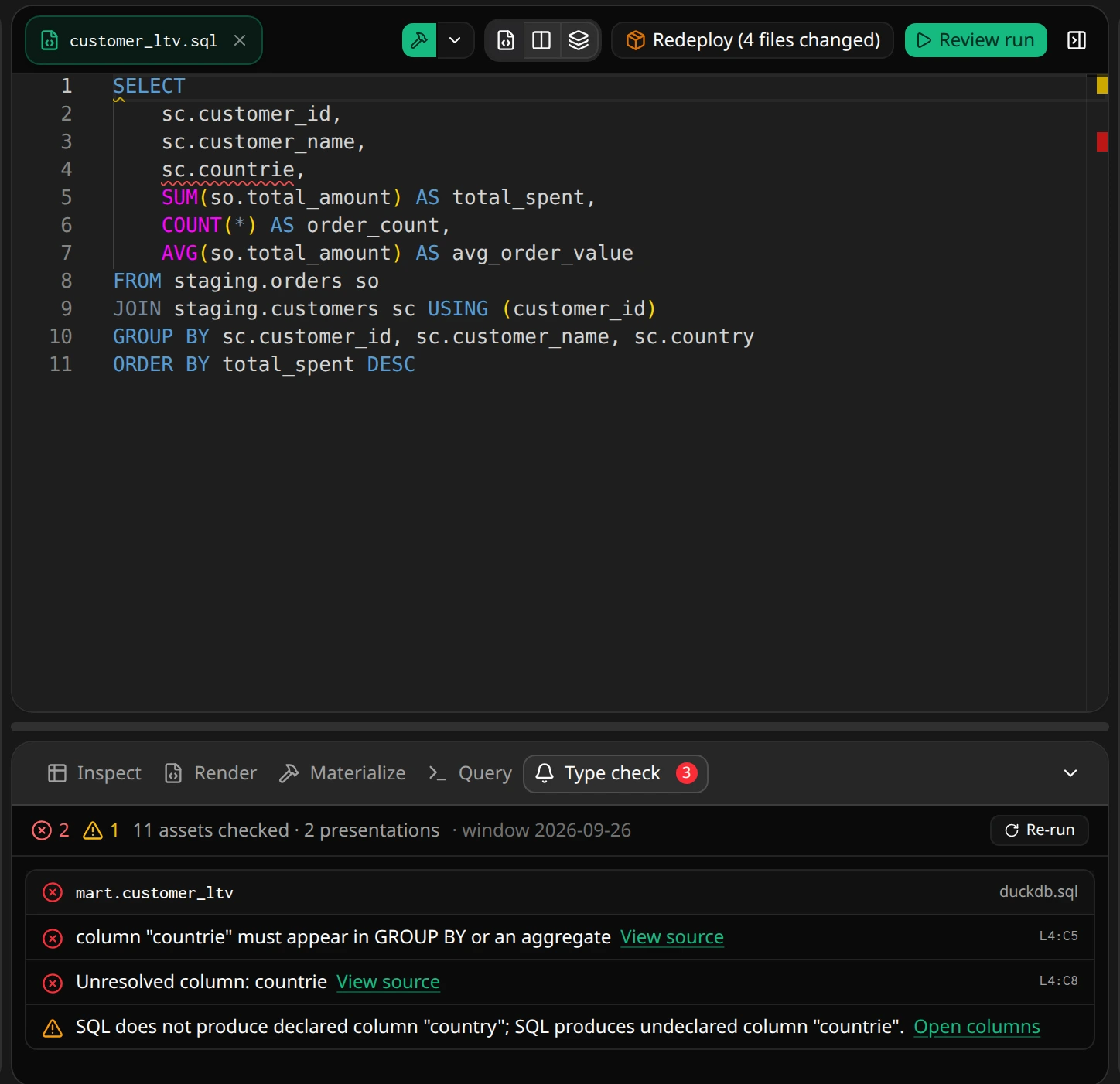
Fix problems while you edit
Section titled “Fix problems while you edit”The editor underlines unresolved tables and columns as you type. Hover an underline to read the problem, for example Unresolved column: countrie. When Renart knows a likely match, the hover offers a quick fix such as Change ‘countrie’ to ‘country’. Press Ctrl+. with the cursor on the underline to apply it.
Completion helps you avoid these problems in the first place: after a table alias, it lists that table’s columns with their types.
Check the whole pipeline
Section titled “Check the whole pipeline”- Open Type check in the results panel below the editor.
- Read the summary: the number of errors and warnings, how many assets and presentations were checked, and the window used for templates.
- Choose View source next to a problem to jump to it. A warning about declared columns, such as a query that no longer produces a column its definition declares, links to Open columns.
- Choose Re-run after fixing the problems.
The Type check tab badge shows the number of open problems, so you can see them without opening the tab.
Tables the pipeline does not know yet
Section titled “Tables the pipeline does not know yet”The editor can also complete tables it has observed on the selected warehouse. Using one is allowed but flagged as a warning until a source asset represents it. Choose Import source asset from the warning or the Type check tab to review the table’s name, connection and columns before adding it, or add it from the Data Browser.
Run the same checks in CI
Section titled “Run the same checks in CI”renart type-check runs the same checks from the terminal and exits with code
1 when it finds errors. Add --strict to fail on warnings too. See the
CLI reference for all options.
Related
Section titled “Related”- SQL assets: writing the query and declaring its columns.
- Variables and Jinja in SQL: templated SQL is checked after rendering.
- The asset editor: the rest of the results panel.