
The pipeline canvas
Choose Canvas or Split in Build to see every asset in a pipeline as a node, with arrows for how data flows between them, so you can read the whole pipeline at a glance and jump straight to the piece you want to work on.
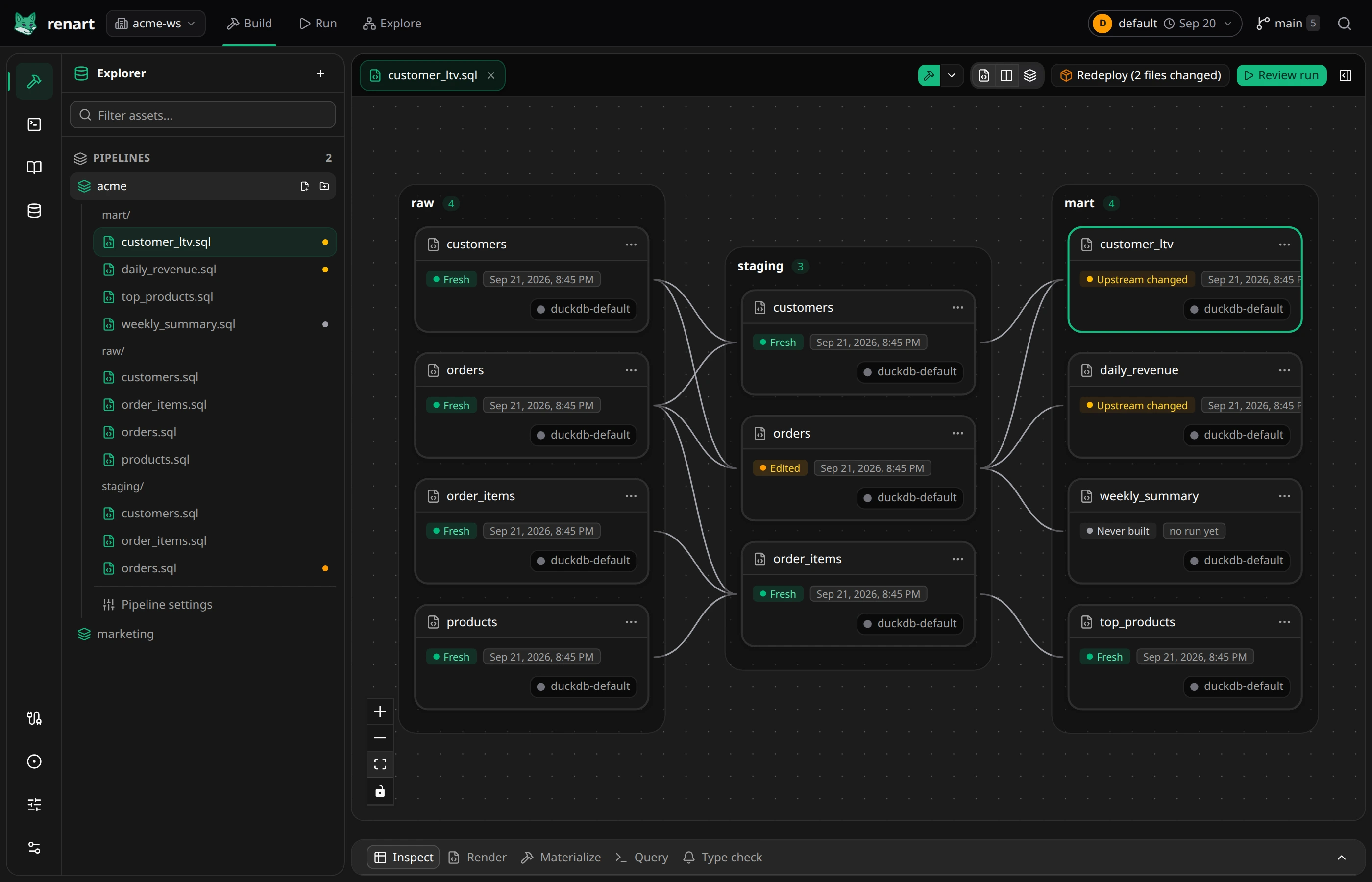
The canvas isn’t an exported diagram — it’s the live workspace. Everything you see is a real file in your project, and the layout updates as you edit.
Read an asset node
Section titled “Read an asset node”Each node summarizes one asset:
- Name and a type icon in the header.
- A freshness badge — Fresh, Edited (the asset’s code changed since it was last built), Upstream changed (something it reads from changed), or Never built — plus the last materialized time. Existing source tables use External source because Renart does not build or assign freshness to them.
- The connection it runs against (for example
duckdb-default).
A node with a coloured border is the one you currently have selected; its details open in the properties panel on the right when it is visible.
Click or tap Running, a failed-run badge, or the last-built time to open its details. Open run inside the popover takes you to that specific run. Clicking the badge itself keeps you on the canvas.
Read the layout
Section titled “Read the layout”Assets are grouped into labelled boxes by the folder they live in under assets/.
In the demo pipeline that’s raw, staging, and mart — the canvas mirrors the
folders in the Explorer, and the count next to each label is how many assets that
folder holds. An asset in assets/staging/ is named staging.<name>.
Follow the lineage
Section titled “Follow the lineage”Arrows point from an upstream asset to the downstream asset that depends on it. Read left-to-right to see how raw inputs become finished tables. Renart infers most of these links from the asset’s SQL; you can also add dependencies by hand in the Lineage tab. Dependencies from sibling pipelines appear as read-only producer nodes that link back to their owning pipeline.
When an interactive type check positively observes a warehouse table that is not represented by an asset, the canvas can show it as a dashed external node. Its action opens a reviewed source-asset import, including the observed connection and columns, before anything is written.
Navigate the canvas
Section titled “Navigate the canvas”- Pan by dragging an empty part of the canvas.
- Zoom with the scroll wheel, or the + / − buttons at the bottom left.
- Fit the whole pipeline into view with the frame button beneath them.
- Lock the layout with the padlock button to avoid moving nodes by accident.
- The view toggles at the top right switch between the canvas, a split view, and a code view of the same pipeline.
Open an asset
Section titled “Open an asset”Click any node to select it and open its details on the right. From there you can open the full editor to change the asset’s code and metadata — see The asset editor.
Create an asset
Section titled “Create an asset”- Use + New asset at the top right, or right-click an empty part of the canvas and pick a kind, to add an asset to the pipeline. Right-clicking inside a group box names the new asset in that group.
- To branch off existing work, hover a node and click the + on its right edge, or choose Create downstream asset from its ⋯ or right-click menu. A new card appears next to it with the name selected after the group prefix: type a name, pick SQL or Python, and press Enter. The asset is created without leaving the canvas, and the new node is centered and highlighted. Press Escape to discard the card. More options… continues in the full dialog with what you typed; Load always continues there, because it needs a destination.
- A new SQL asset starts as a query on the asset you came from. When that asset’s columns are known, the query lists them, written in the same keyword case as the rest of the pipeline.
- In the canvas-only view the canvas stays as it is, and a preview of the new asset’s code opens in the corner. Edit source opens it in the editor.
- If creating fails, the card stays on the canvas with the error. Fix the name and click Retry, or use More options….
Search (Ctrl K or ⌘K) lists New asset and, when an asset is selected, Add downstream of selected. Outside text fields and editors, press N or D for the same actions.
Join assets
Section titled “Join assets”- Shift-click two or more nodes (or Shift-drag a box around them), then
click Join into new asset. The new SQL asset joins them on the columns
they share. When they share no column, the query uses a
CROSS JOINwith a comment marking where the join condition goes. - Drag from a node’s + onto another asset to connect the two. For a SQL asset, Join in query wraps its query and joins the new upstream to it; Add as dependency makes the asset run after the other one and leaves its code unchanged. Dropping onto empty space instead starts a new downstream asset there.
Bring tables in from the Data Browser
Section titled “Bring tables in from the Data Browser”Open Data Browser beside the canvas and drag a warehouse table onto the
matching prefix group. For example, raw.orders belongs in raw; if that
group does not exist, a temporary drop area marks the new group. The source name
stays unchanged because it identifies the warehouse table. Renart previews the source asset, including its connection
and columns; confirm the import to create the file. Existing tables remain
external sources — importing one does not copy or modify its data.
Drag a destination connection onto the load target after a compatible asset to start a Load asset with the source and destination prefilled. Review the settings before creating it. Drop targets appear only where that operation is supported and grow as you drag closer; existing consumers are not rewired automatically.
On touch devices, or without dragging, use the table or connection’s Use action and select the corresponding target on the canvas.
Related
Section titled “Related”- Tour of the interface — where the canvas sits in the app.
- The asset editor — edit what a node contains.
- Concepts — staleness and lineage in the underlying model.