
Notebooks
Open Build → Notebooks to combine SQL, Python, source data, text, and charts in one document. Cells share a local DuckDB session, so you can join snapshots from different systems without creating remote scratch tables.
Add data from several systems
Section titled “Add data from several systems”Open Data and choose Add data to create a source block:
- browse a configured warehouse connection and start from a generated read-only query;
- select a local file or an object from configured S3-compatible or Google Cloud Storage credentials;
- describe an HTTP request and the response records to extract.
A warehouse query runs in that connection’s native SQL dialect. Renart copies the typed result into the notebook’s local DuckDB, where downstream SQL and Python cells can join it with snapshots from other connections. Source cards show the connection, environment, snapshot age, rows, bytes, and whether the snapshot is complete or intentionally sampled.
You can also open the Data Browser while editing a notebook and drag a table or supported project/S3 file into a gap between blocks. On a phone or with the keyboard, use the item’s Add to notebook (+) action, then choose Add source here. Review the block name and full/sample snapshot setting before confirming. Nothing is queried or copied until you run the new source block. Read-only warehouse connections can be used as sources too.
Drops currently accept individual CSV, JSON, JSONL and Parquet files. Choose a file inside a storage prefix; prefix/pattern drops and SFTP notebook transfers are not supported yet. The Data Browser stays open on desktop, so you can add another source without leaving the notebook.
Database transfers use typed Parquet snapshots. Renart does not fall back to
JSON rows or guess physical column types when a connection cannot provide that
transport; the source run fails and keeps its previous complete snapshot. Local
DuckDB sources use a native read-only path, while other supported database
connections use Sling. The server-wide byte and time budgets are configurable
with --notebook-snapshot-max-bytes and --notebook-snapshot-timeout.
Choose Full when downstream work needs the complete result. Choose Sample with an explicit row limit for exploratory work. Preview limits only control the rows rendered in the browser; Renart does not silently publish a truncated preview as a complete source table.
Read and copy a result selection
Section titled “Read and copy a result selection”Select cells in a result table, then drag a selection edge or corner to grow or shrink the range. Corner handles work with touch and arrow keys too. Use the selection toolbar to copy, select all, or open View selection full screen to read complete values. The full-screen view keeps the current selection and does not run the cell again. Close it to return to the same table position.
SQL and Python cells
Section titled “SQL and Python cells”Connectionless SQL cells are local DuckDB transforms. They can refer to other notebook cells by their concise visible names, and Monaco provides DAG-aware completion and diagnostics. A SQL source cell instead uses its selected connection’s catalog, dialect, and remote-table completion.
For a first SQL cell, run SELECT 1 AS value and check that the result table
contains one row. Add a second cell that references the first by name to build
the notebook’s dependency graph.
Python cells use the same materialize() contract as Python pipeline assets.
They query the notebook’s local session through Renart’s built-in SDK. The
examples below assume you have a source cell named daily_orders with
region and order_total columns:
from renart import query

def materialize():    orders = query("select * from daily_orders")    return orders
Use Dependencies to add third-party packages. The built-in runtime includes pandas and PyArrow. Python receives query results but never the DuckDB path or warehouse credentials, and it runs only when you request it; editing Python does not trigger automatic execution.
Run one cell, run from a cell downward, or Run all. Renart keeps successful result schemas, row counts, source provenance, and definition staleness in the notebook session so they survive a server restart. Completed relations can be downloaded as CSV or Parquet.
Text and controls
Section titled “Text and controls”Text blocks use a visual Markdown editor. Select a block to reveal its editing and move controls.
Open Add to drag SQL, Python, Text, controls, or visualizations into an exact gap between existing blocks. Controls are first-class notebook blocks with a settings inspector on the right. Text, select, multi-select, slider, range, and switch controls can use custom values or options loaded from a successful cell result.
Parameters
Section titled “Parameters”Open Add and choose a control to add typed notebook inputs. A control’s ID, type,
default, and optional choices are saved in notebook.yml; the value you are
currently exploring stays local to your Renart session. This keeps useful
defaults reviewable in Git without turning every interactive selection into a
file change.
Use the safe parameter namespace in SQL:
select *from daily_orderswhere region = {{ parameter.region }} and order_total >= {{ parameter.minimum }}Renart quotes and escapes these values as typed SQL literals, and Monaco offers
the declared IDs inside Jinja expressions. In Python, read the same typed
values from context.vars:
from renart import context, query

def materialize():    region = context.vars["region"]    orders = query("select * from daily_orders").to_pandas()    return orders.loc[orders["region"] == region]
For file/object paths and HTTP request templates, use
{{ parameters.region }}. Exact placeholders in HTTP JSON bodies preserve
boolean, numeric, and list types. Changing a value marks affected notebook
results stale; the runtime value is also part of result fingerprints, so an
export cannot accidentally reuse output produced with another selection.
Visualizations
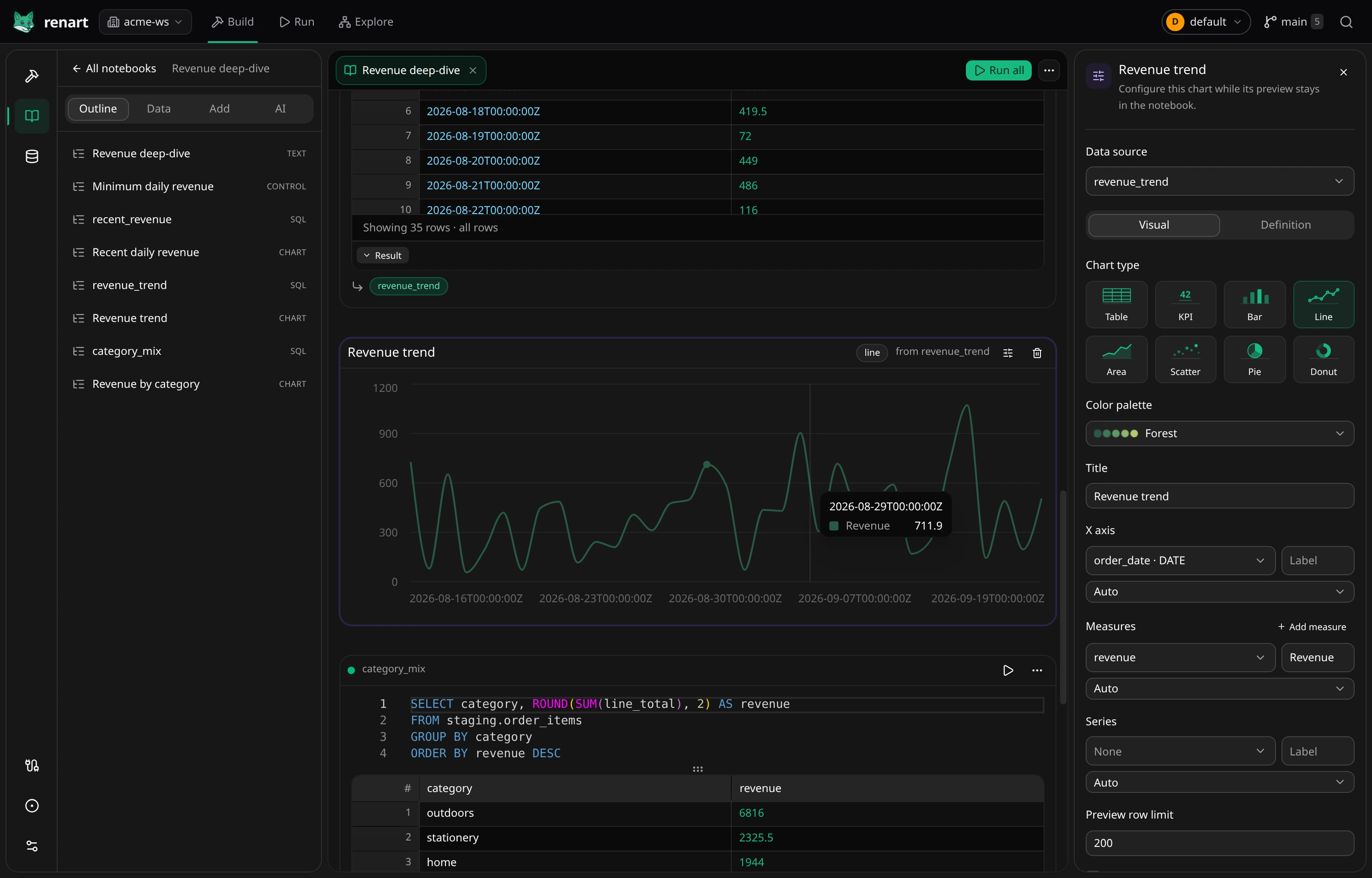
Section titled “Visualizations”Run the source cell, then use Add to insert a visualization and choose that result. Select the chart to open its settings inspector on the right. The builder supports tables, KPIs, bar, line, area, scatter, pie, and donut charts. Use the Visual / Definition switch to edit the same versioned definition through controls or YAML; switching views does not rewrite the source SQL.
Renart checks referenced fields and compatible field types in the backend. A renamed or removed result column therefore becomes a targeted visualization diagnostic while the saved definition remains editable. Multiple visualizations can read the same cell.
Older notebooks with an @viz SQL comment continue to render. Use the
migration action to replace a legacy directive with a durable visualization
block; new visualization edits do not write @viz comments.
Promote a cell to the pipeline
Section titled “Promote a cell to the pipeline”To reuse a transform or source in a pipeline, open its actions menu and choose Promote to pipeline. Before anything changes, Renart shows the target pipeline, asset type, source and target connections, materialization, files to change, and any dialect consequences.
Local SQL and Python become ordinary pipeline assets. A full local-file source becomes a Seed asset where the target supports one, object-storage sources become Load assets, and HTTP sources become API assets while retaining the request and response settings. Connection-bound SQL keeps its source connection. An intentionally sampled source cannot be promoted until you change it to Full.
Applying the reviewed plan creates the pipeline files, rewrites remaining notebook references, and removes the promoted blocks as one recoverable workspace change. If the notebook changed after review, Renart keeps both the notebook and pipeline untouched and asks you to review again.